


How to Set Up IPTV on Firestick
Setting up IPTV on a Firestick is one of the easiest ways to start streaming live TV, movies, and series on your television. The entire process takes just a few minutes, and no technical experience is required. Here is exactly how to do it.
What You Need Before You Start
- An Amazon Firestick (any model) plugged into your TV
- A Wi-Fi connection with a stable internet speed (10 Mbps minimum for HD)
- An active IPTV subscription with login credentials from your provider
Step 1: Connect Your Firestick to the Internet
Turn on your Firestick and make sure it is connected to your home Wi-Fi network. For the best streaming performance, place your router close to your TV or use a wired Ethernet adapter for a more stable connection.
Step 2: Enable Apps from Unknown Sources
Since some IPTV players are not available directly on the Amazon App Store, you may need to allow installation from unknown sources. Go to Settings → My Fire TV → Developer Options and enable Apps from Unknown Sources. This step is only needed if you plan to sideload an IPTV app.
Step 3: Download an IPTV Player
Open the Amazon App Store from your Firestick home screen and search for an IPTV player. Some of the most popular and reliable options include:
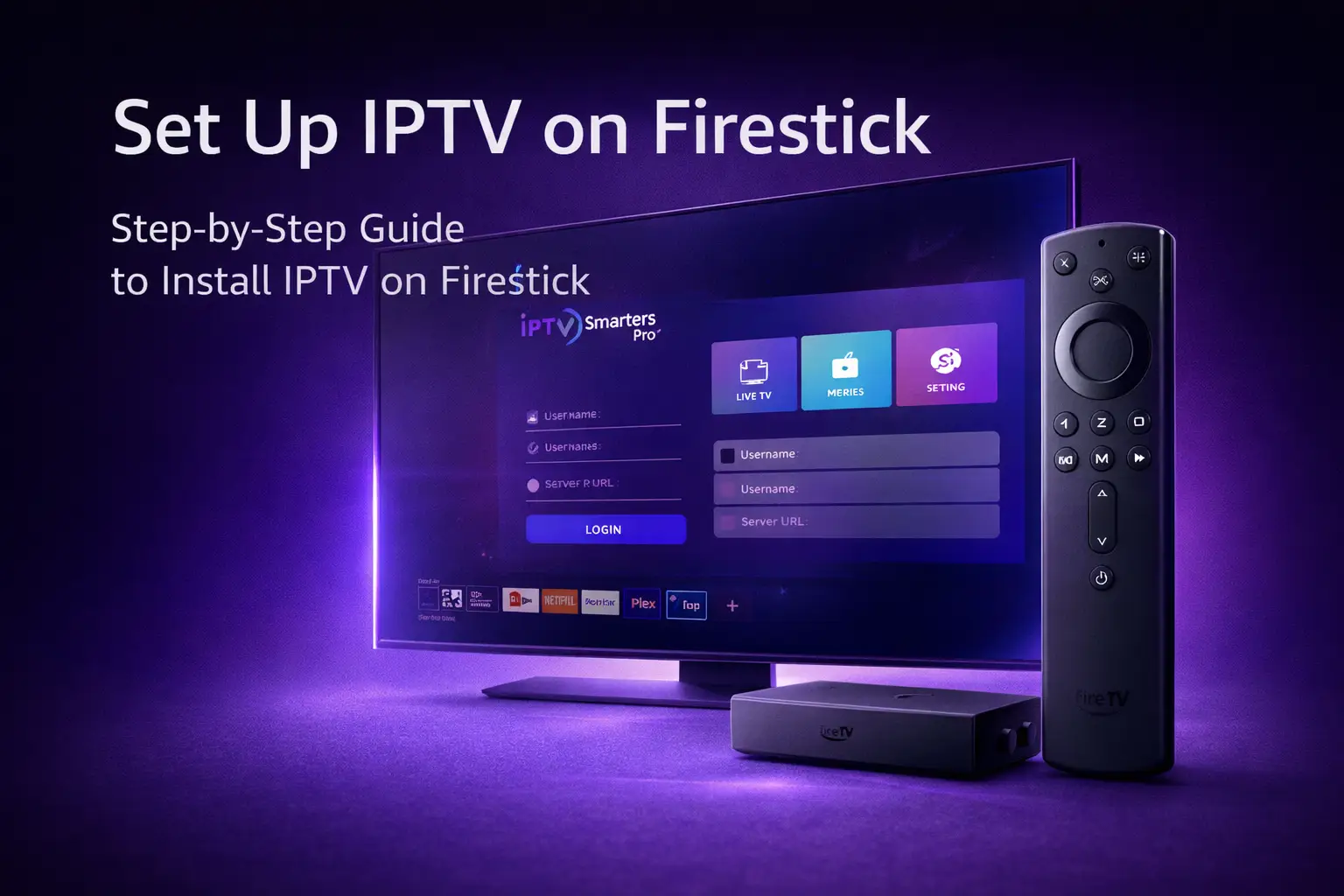
- IPTV Smarters Pro — user-friendly interface, supports M3U and Xtream Codes
- TiviMate — one of the best IPTV players available, with a clean EPG and recording features
- GSE Smart IPTV — highly customizable and supports multiple playlist formats
Select your preferred app and click Download to install it on your Firestick.
Step 4: Enter Your IPTV Credentials
Once the app is installed, open it and select the option to add a new playlist or provider. Enter the login details provided by your IPTV service.